
Basics & Beyond policies
Terms of Service
Understand registration, access, attendance, credit, refunds, transfers, troubleshooting, conduct, course-content, and website-use policies before registering.
At a glance
What to know
- CPE and CE credit require verified attendance and required participation.
- Refund timing depends on when a cancellation request is received.
- On-demand access is generally non-refundable after access begins, except for promptly reported technical problems.
Registration and access
After registration and payment are completed, the attendee receives a confirmation email with event details. Webinar attendees must also complete the GoToWebinar registration step so personalized reminders and the join link can be delivered.
- Same-day registrations are accepted only when space remains; materials and access links cannot be guaranteed for late registrations.
- Waitlisted registrations are charged only when confirmed; otherwise the fee is not charged or is refunded.
- A recording may be available to a paid registrant for review, but it does not create live CPE credit unless offered as a separately eligible on-demand course.
CPE, CE, attendance, and certificates
Sessions follow the published IRS and NASBA standards applicable to the individual program. Credit is based on both verified time and participation.
- One CPE or CE credit equals 50 minutes of verified real-time attendance.
- Attendees must complete at least three polling questions per hour when required for the live session.
- The attendee must remain logged in for the required portion of the program and use the registered email identity.
- No-show participants may request materials, but materials alone do not qualify for credit.
- Certificates are normally issued after attendance and participation are verified; replacement requests are generally handled within two business days.
- A refunded registration is not eligible for credit, and any related certificate is void.
Refunds, satisfaction, and transfers
Email [email protected] as soon as possible when plans change. Refund eligibility is based on when the cancellation request is received.
- If Basics & Beyond cancels, choose a full refund or transfer to a future course of equal value.
- A completed attendee who is dissatisfied may request transfer into a comparable session under the satisfaction guarantee.
- When a refund is unavailable, Basics & Beyond may approve applying the registration value to a future seminar.
- A substitute attendee must be identified in advance with correct account and payment information.
| Cancellation timing | Refund |
|---|---|
| 14 or more days before the event | 100% |
| 8–13 days before the event | 75% |
| 1–7 days before the event | 50% |
| Same day or no-show | No refund |
On-demand and self-study courses
On-demand and self-study courses become non-refundable once access begins. Report a first-access technical problem within 36 business hours so support can troubleshoot and determine whether an exception is appropriate.
Special cases and operational policies
Basics & Beyond attempts to hold every scheduled program. Weather, emergencies, speaker availability, or operational needs can require updated instructions or changes.
- Group pricing begins with three attendees; attendees above the published maximum continue at the last listed per-person rate.
- Each group attendee must satisfy the same identity, attendance, and participation requirements.
- Volunteer speakers may receive complimentary same-day attendance or approved discounts for an additional day.
- Event photos or video may be used for website, email, and social-media promotion.
Conduct, content, and website use
Basics & Beyond maintains a respectful learning environment. Harassment, discrimination, abusive conduct, or substantial disruption may result in removal without refund.
- Use the website and services lawfully and provide accurate registration and payment information.
- Do not share, resell, copy, or redistribute course materials without permission.
- Certificates are issued only after verified program requirements are met.
- Educational content is not legal, tax, or professional advice for a specific client.
- Site content and course materials belong to Basics & Beyond or its licensors.
- To the extent permitted by law, maximum liability is limited to the registration fee paid for the affected offering.
- These terms are governed by Florida law and may be updated prospectively.
Virtual seminar troubleshooting
Use this guide for webinar access, seminar-date changes, polling questions, audio, screen visibility, reminders, GoTo setup, replays, PDFs, and certificates.
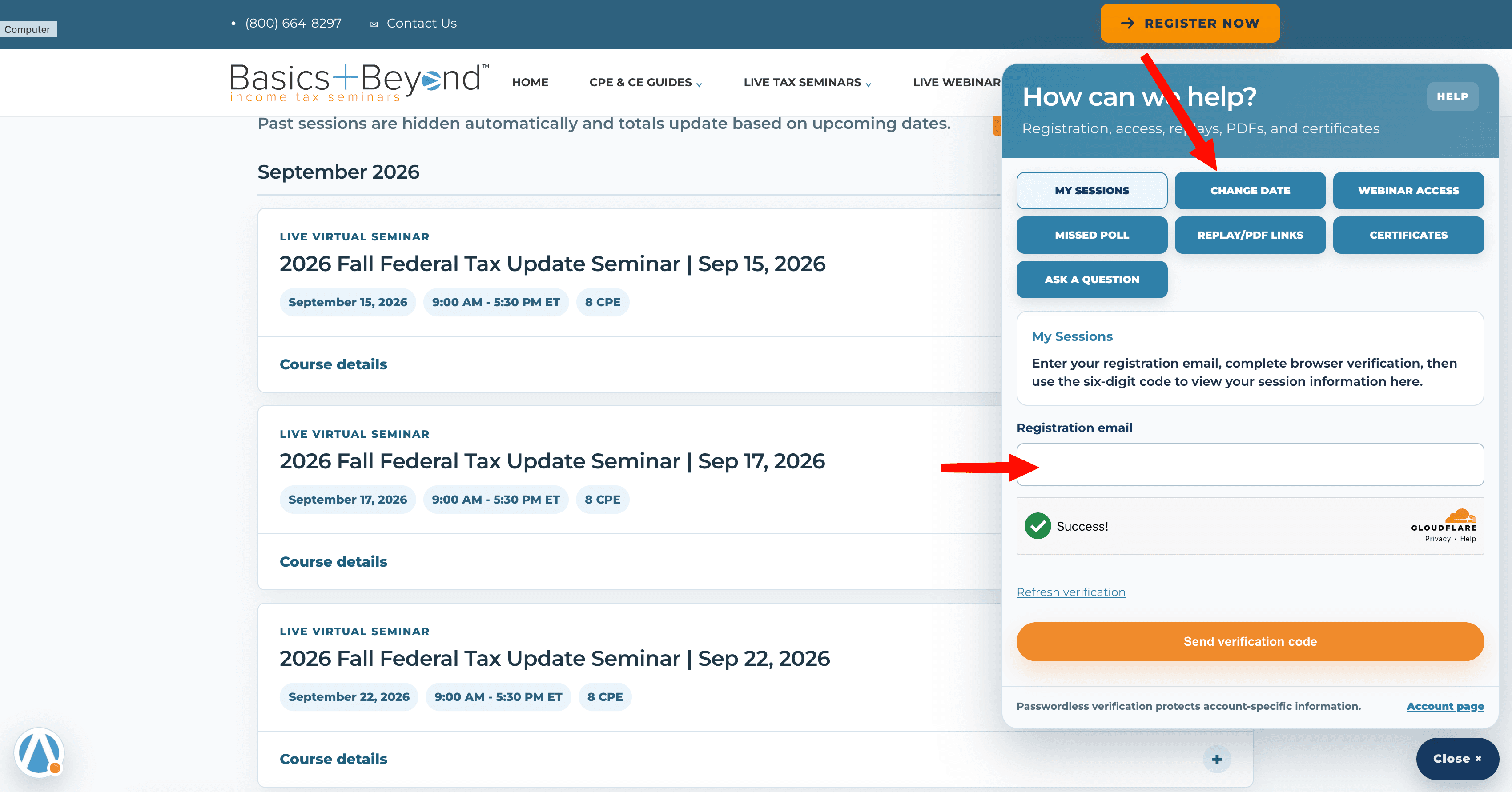
For personal registration information, select Need Help? and the relevant topic. Enter your registration email, complete the Cloudflare (Turnstile) verification, request a six-digit verification code, and enter it in the same widget. No separate username or password is required for Need Help. The separate attendee account link uses your existing email or username and password.
- Before the session, confirm that GoTo opens and that your speaker output works.
- Keep your personalized GoTo webinar window open so attendance and polling can be recorded.
- If you disconnect, rejoin promptly using the same personalized link. Report connection or polling problems through GoTo Questions during the session.
- When contacting support, include the attendee name, registration email, and session title.
Support guide
Select the problem that most closely matches what you are seeing.
01How do I register and receive webinar access information?
For a live webinar or seminar, start at https://register.cpehours.com/checkout/browse/. For an office or group booking, use https://register.cpehours.com/checkout/group-registration. Choose your program and complete registration and payment. Keep the confirmation email.
Checkout may ask you to sign in or complete attendee information first. The attendee-information form at /register is not the purchase destination; creating an account alone does not reserve a seat or pay for a course.
For an on-demand course, choose the course on our website and use its purchase button.
- If your confirmation asks you to complete a GoToWebinar registration step, follow that link and submit the attendee details.
- Find the GoTo confirmation containing your personalized Join Webinar link. Check spam, junk, Promotions, and other inbox folders for [email protected].
- If the email is missing, follow Find my join link below. Contact support if your paid registration is not listed; do not purchase the same session again to recover access.
02How do I change a seminar date?
Use Need Help? → Change Date to move a paid seminar registration to another available date.
- Select Need Help?, then Change Date, and enter the registration email.
- Complete Cloudflare verification and select Send verification code. The check may complete automatically and show Success!
- Enter the six-digit code from that request in the same widget, then select Verify code and get help.
- Find the correct seminar, choose a new available date, and select Review date change.
- Check the seminar and replacement date, then select Confirm date change. Confirm that the updated date appears before closing the widget.
03What must I do to earn live CPE or IRS CE credit?
Credit depends on verified attendance and required participation for your program. Follow the credit requirements published for the session.
- Join through your personalized link using the attendee identity associated with your registration.
- Remain connected for at least 50 minutes per credit hour.
- Answer at least three polling questions per credit hour when required for the live session.
- Keep the GoTo window open and check it for polls. Report a connection or polling problem during the session.
04I cannot see a polling question, or I missed one. What should I do?
If you missed a poll that has already closed, stay in the session, report it in GoTo Questions, and submit a report through Need Help? → Missed Poll. Use the steps below to create a missed-poll record for support review.
- Check for a hidden window: return to the GoTo app or webinar tab and look for a poll behind another window.
- Reconnect only if needed: if GoTo is disconnected or polls still fail to appear, reopen the same personalized Join Webinar link.
- Report the issue during the session: use the GoTo Questions box immediately. State which poll you missed and whether you disconnected or rejoined.
- Open the missed-poll form: on CPEHours.com, click Need Help? in the lower-right corner and choose Missed Poll.
- Verify your registration email: enter the email used to register, complete the security verification, request the six-digit email code, and enter it in the same widget.
- Submit the report: select the affected session and poll number, choose why the poll was missed, add details if needed, and submit to support for review and approval.
- Continue participating: answer the remaining polls. Contact support if the problem continues; include your registration email, session title, and approximate time of the issue.
05Where is my personalized webinar join link?
Look in your GoToWebinar confirmation or reminder email for Join Webinar. The confirmation contains your link; you do not need to wait for a reminder.
- Search your inbox and spam or junk folders for [email protected] and the session name.
- If you cannot find the message, select Need Help? → Webinar Access and enter your registration email.
- Complete Cloudflare verification, select Send verification code, then enter that six-digit code in the same widget and select Verify code and get help.
- Open the correct session and use its personalized join link. If no matching session appears, contact support with your registration email and session title.
06How do I install or access GoTo?
Start with your personalized Join Webinar link. GoTo will offer the joining options available for that session. You do not need a separate GoTo account to attend.
- Before the session, open your join link to check the setup prompts.
- If prompted, select Open GoTo or follow the installation instructions for your device. If a browser option is offered, you may select it instead.
- If your workplace prevents installation, use the offered browser option or ask your IT team for help before the session.
- After connecting, check the speaker output and volume. If the organizer has not started, keep the waiting window open.
07I have no sound. What should I check?
First check whether the session has started. If the presenter is speaking but you hear nothing, work through these checks.
- Check your audio mode: in GoTo, choose computer audio if you want to listen through your computer.
- Check the output: select the correct speaker or headphones in GoTo and your device settings. Raise the volume and check that neither is muted.
- If using a browser: unmute the webinar tab and allow site audio if your browser has blocked it.
- Close other applications that may be using the audio device, such as Zoom or Teams, then test again.
- If sound still fails, leave and rejoin using the same personalized link. Contact support if you still cannot hear.
08I cannot see the screen, or the slides are not advancing.
Check whether the webinar window is hidden or the presenter is simply staying on one slide. If the presenter says the slide has changed but your screen has not, try these steps.
- Bring GoTo to the front and look for the shared-screen window behind other applications.
- If you joined in a browser, reload the webinar tab using F5 on Windows or Command-R on a Mac.
- If the screen remains blank or frozen, leave and rejoin with your personalized Join Webinar link.
- If the issue continues, report it in GoTo Questions or contact support with the session title and what you see on screen.
09I hear an echo or feedback. What should I do?
An echo can occur when more than one device or connection plays the same webinar audio.
- Close duplicate webinar tabs or extra GoTo sessions. Keep one webinar connection open.
- Use one audio connection: computer audio or telephone audio. If using the telephone, turn off computer audio while keeping the webinar open for slides and polls.
- Use headphones if sound from nearby speakers is feeding back.
- If the echo remains, report it through GoTo Questions so the organizer can check the presenter’s audio.
10Where do I find session PDFs, replays, receipts, and certificates?
Choose the help topic that matches the item you need, then verify the email used for that registration.
- For handouts or recordings, select Need Help? → Replay/PDF Links.
- For an issued certificate, select Need Help? → Certificates.
- For registration details and available receipt links, select Need Help? → My Sessions or open the attendee account.
- Complete Cloudflare verification, request one six-digit code, and enter it in the same widget. Select Verify code and get help, then open the correct session.
- If an item is missing, contact support with the session title, registration email, and item you need.
11What if I miss the session or still need help?
If you missed a paid session, contact support to ask whether a recording is available. A recording is for review and does not earn live-session credit.
- For a registration, date-change, attendance, PDF, replay, or certificate issue, email [email protected] or call (800) 664-8297. Support is monitored during business hours and live events.
- Include your name, registration email, session title and date, and a short description of the problem. For technical issues, include the device, app or browser, and any error message.
- If you are still in the live session, also report an urgent connection or polling issue through GoTo Questions.
Continue
Use the current schedule and registration system for authoritative availability.
Questions & answers · Reviewed September 2026
Course-credit questions
Educational guidance about earning or sponsoring credit. The registration terms above continue to govern your purchase.
How do I get CPE credits or offer my own course for credit?
To earn CPE, choose a program accepted by your licensing authority, complete its attendance or assessment requirements, and retain the completion record. To offer a course, follow the applicable state-board sponsor rules and, where appropriate, apply to NASBA’s National Registry. IRS CE providers must use the separate IRS approval process. Purchasing a course or holding a professional license does not automatically authorize someone to award CPE or IRS CE.